Log Files Support
Syntax Highlighting
.log automatically detects and highlights common log formats, including timestamps, log levels, categories, stack traces, log message constructs (numbers, measures, strings, value literals) and ANSI rendering instructions.
Note: In some cases, some log elements may not be highlighted as expected due to difficulties in reverse engineering human-readable log output to machine instructions. Typically, the impact is negligible. Regardless, please report anomalies. In some cases, rendering syntax can still be improved.
For any unrecognized log formats or highlighting inconsistencies, please submit an issue with a log sample.
Log events time range
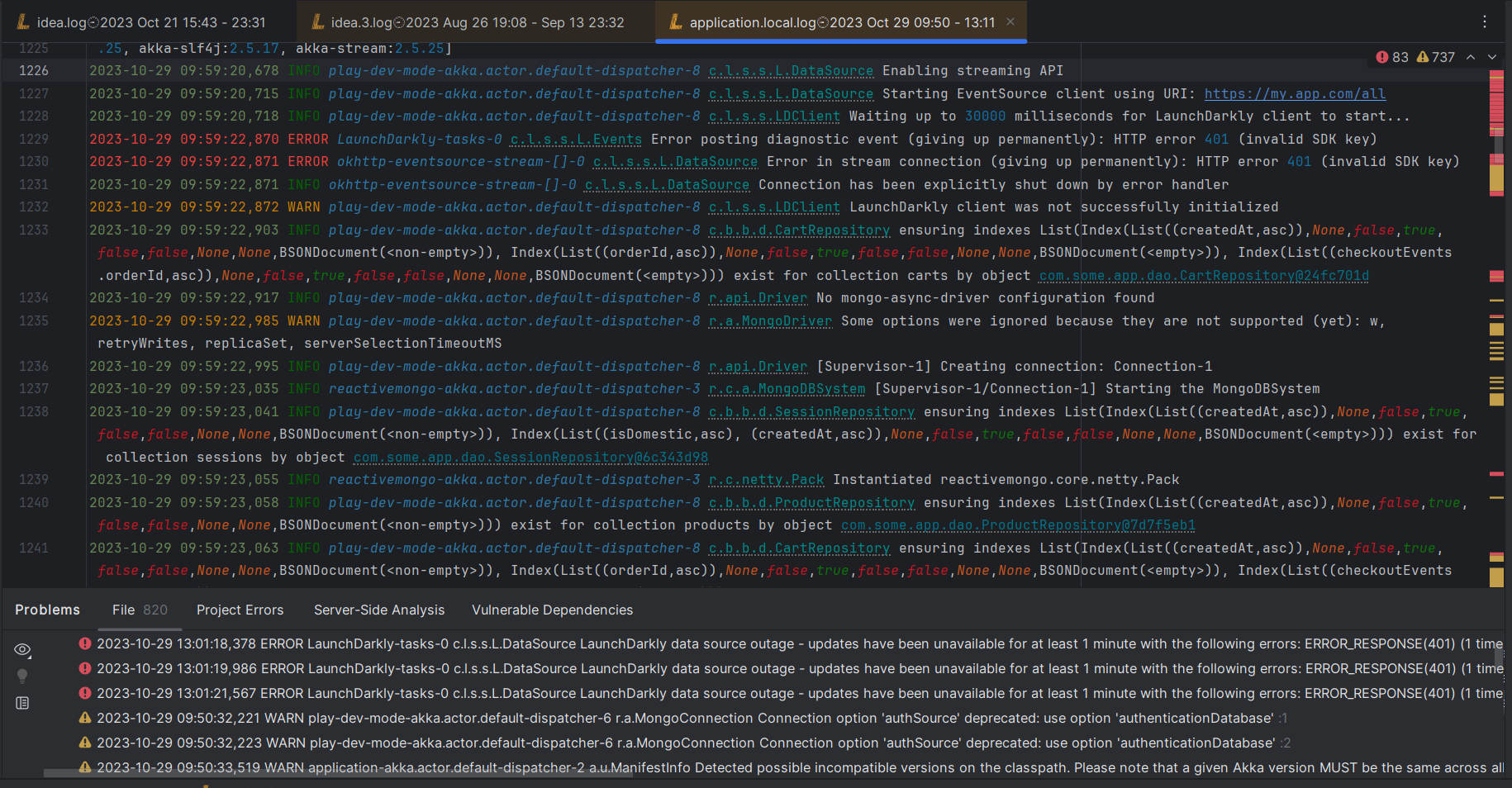
log file name display, on project view, or file tab, will include the time range of its log entries. date format will abbreviate and omit year, month,day - if those match current date
Navigation - Hyperlinks
Some log elements are converted to hyperlinks:
- URIs/URLs: Open URLs directly from the log.
- File Paths
- Log Categories & Stack Traces
Open Hyperlinks - with Keyboard Shortcut: Cmd + B | Ctrl + B or a Click
Note: Code navigation may not always work as expected. In some cases it is not feasible to locate project resources without additional hints. Please report any issue, so we can improve the navigation experience.
Navigation - Problem Inspections
Opened log files are inspected for Errors and Warnings - each of those are
- highlighted in the editor
- reflected as a heatmap on the right side of the editor
- listed in the Problems Tool Window.
Note: Problem inspections are not available for Large log files (above Jetbrains IDE in-memory text file size threshold) that are viewed with pagination support. See Settings - File Size Thresholds.
- Navigate to Next/Previous Problem - with keyboard shortcut
F2/⌘+F2 | ⇧+F2 - View All Problems in the Problems Tool Window - Keyboard Shortcut:
⌘+6 | Alt+6
By default, only Errors are cycled through with problem navigation. To include Warnings:
- Hover over the error/warning counter in the top right corner of the editor.
- Click on the three-dot menu and adjust the settings.
- Alternatively, go to Settings > Editor > Code Editing > Error highlighting or use Find Actions (
⌘+⇧+A | Ctrl+⇧+A) dialog.
Note: There is a cap on the maximum reported problems for performance. If there’s a need to increase this cap, please report an issue, so we can consider adding a setting for that.
Live Log Tailing
For local log files, .log automatically displays content appended to the file on disk. Keep the file open to follow new output without reopening or manually refreshing it.
When new content is detected, use the Tail log toggle in the editor to follow the latest output or keep your current position. Tailing automatically resumes when you place the cursor at the end of the file. Live tailing is not available for log files opened in Large File mode.
Display Transformation
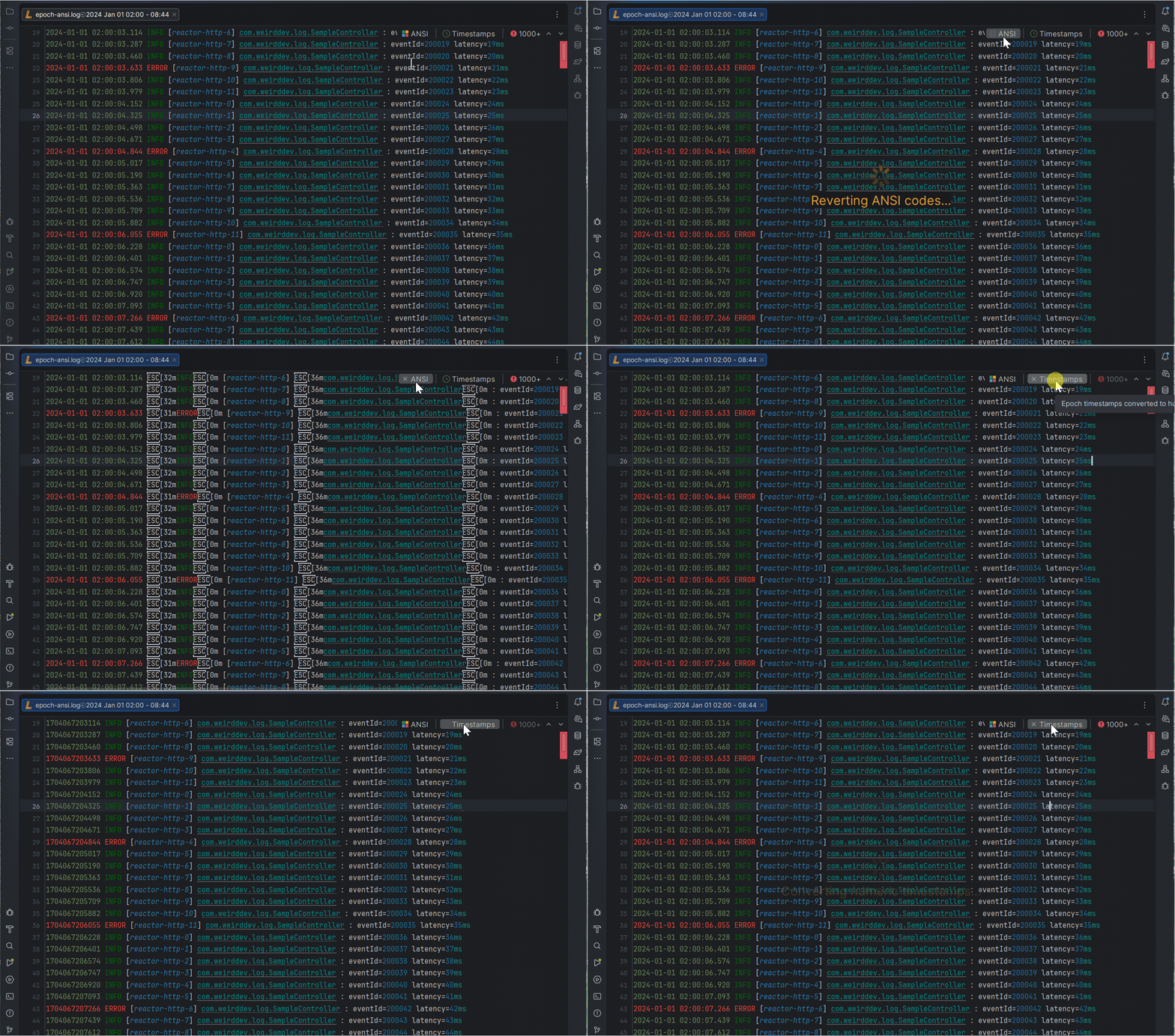
.log automatically detects and applies display transformations to improve log readability. Each transformation can be toggled on or off independently per file.
ANSI Escape Codes
When a log file contains ANSI escape codes (terminal color/style sequences), .log automatically strips them and applies the corresponding text styling for a clean, readable view.
Epoch Timestamps
When a log file contains numeric Unix timestamps (epoch seconds or milliseconds), .log automatically converts them to human-readable date/time format.
Toggling Transformation
Toggle buttons appear in the top-right area of the editor when the relevant content is detected:
- ANSI — toggles ANSI code stripping and formatting
- Timestamps — toggles epoch-to-datetime conversion
Both toggles are also accessible via Find Action (⌘+⇧+A | Ctrl+⇧+A):
- Search: Remove ANSI escape codes
- Search: Convert epoch timestamps
Transformations are applied when log file is opened. Disabling a toggle restores the raw content for that feature. Toggle state is maintained per file for the duration of the IDE session.